Overview
In this unit you’ll build a classic top-down space shooter game using GDevelop. First we need to setup your folders and add the asset pack, and start a brand-new GDevelop project.
What You’ll Do Today
- Create a Unit 3 folder on your H: drive named
3. Game Development - Download and extract the Space Shooter Assets into that folder
- Create a new GDevelop project and save it in the same folder
- Rename your starting scene to
Level_1 - Verify your folder structure and that your project saves correctly
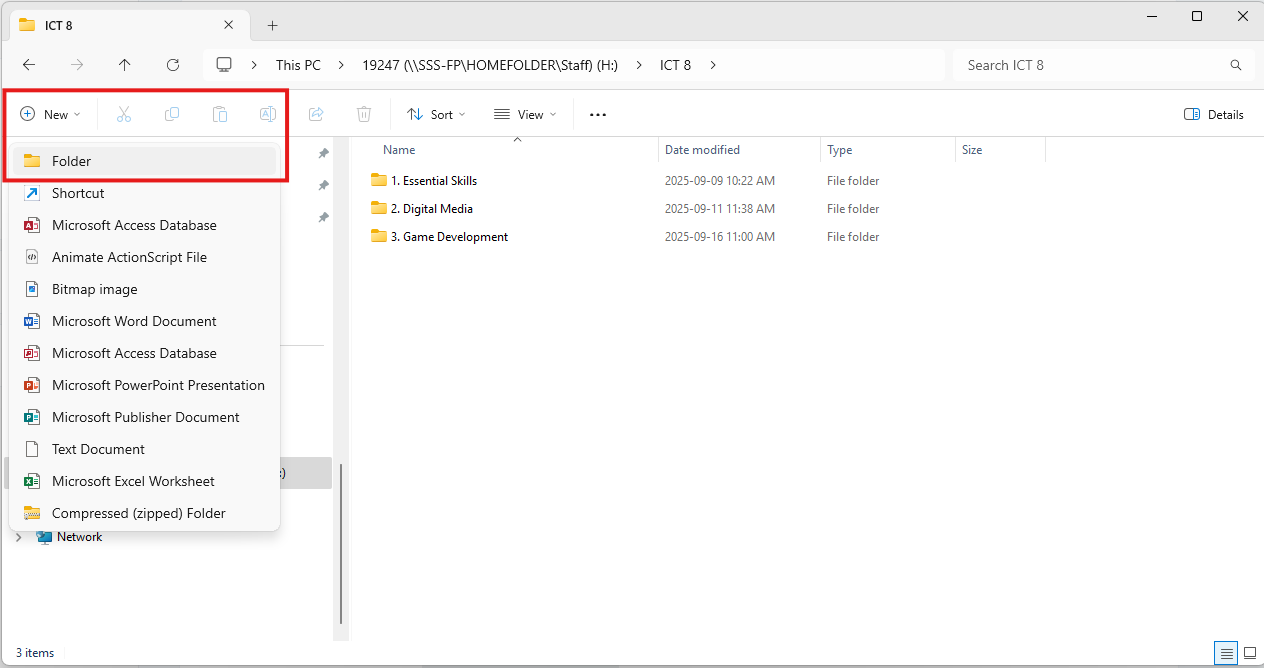
Step 1 — Create Your Unit 3 Folder (H:)
- Open File Explorer.
- Navigate to your H: drive.
- Create a new folder named:
3. Game Development
Step 2 — Add the Space Shooter Assets
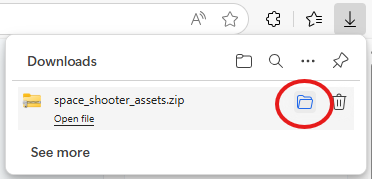
- Download the folder and press
Save- this will save the file in yourDownloads - Press on the folder icon after it downloands to open its location in the File Explorer
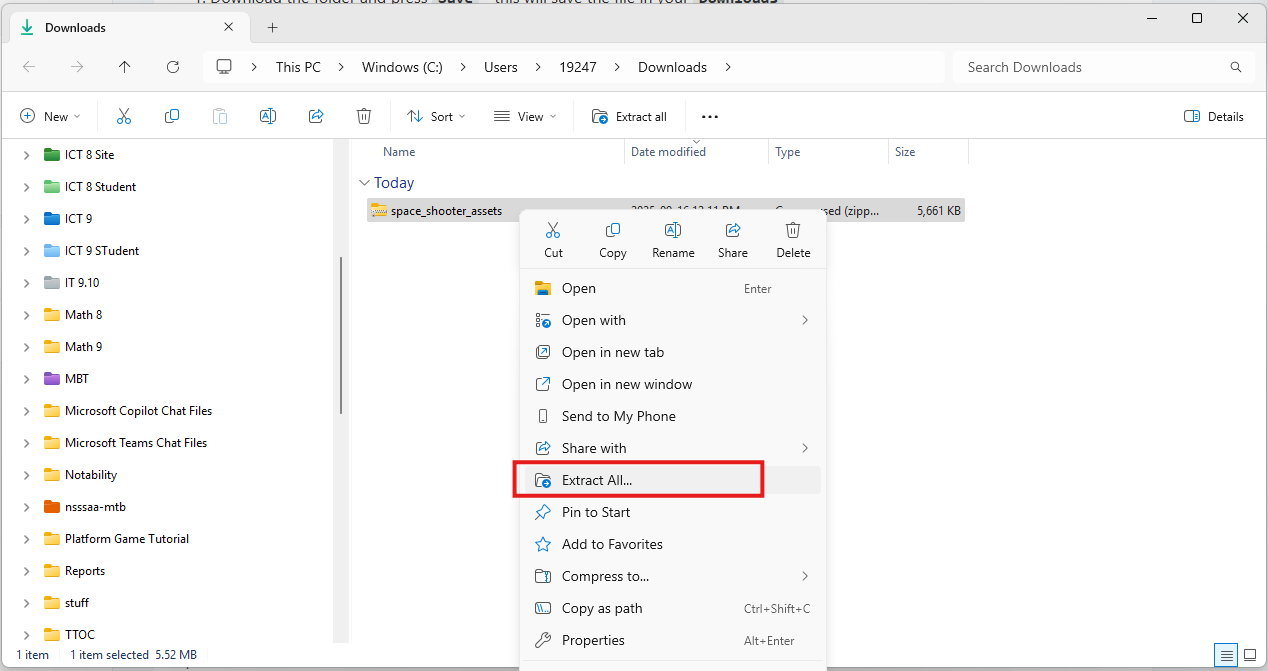
- After the File Explorer window opens right click on the file and select Extract All...
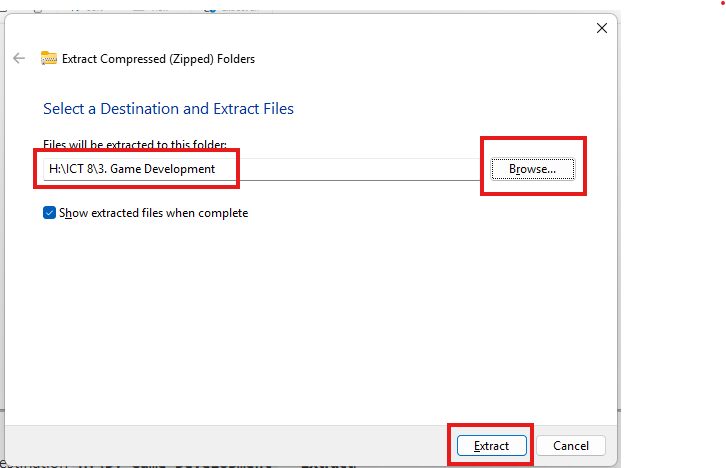
- Press
Browseand select the destinationH:\3. Game Development→ Extract. - After extracting, you should see a folder named
space_shooter_assetsin your 3. Game Development folder with files to use in your game.
Download: Space Shooter Assets (.zip)
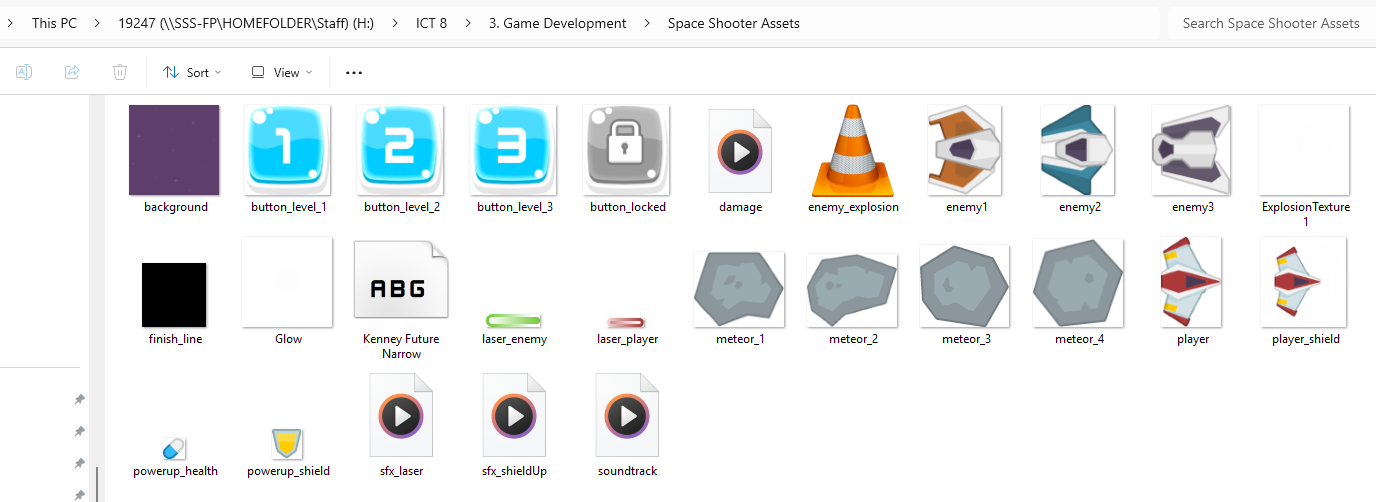
Now we are ready to set up our game!
Step 3 — Create Your GDevelop Project
- Open GDevelop.
- Go to Create → Create a new game
- Select Empty project.
- When prompted to save:
- Location:
H:\3. Game Development - Name:
Space Shooter - YourName
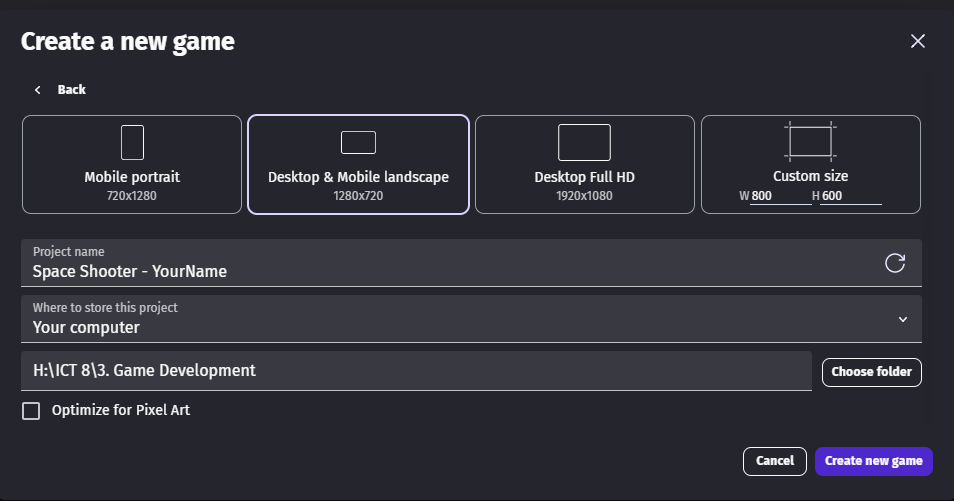
- Location:
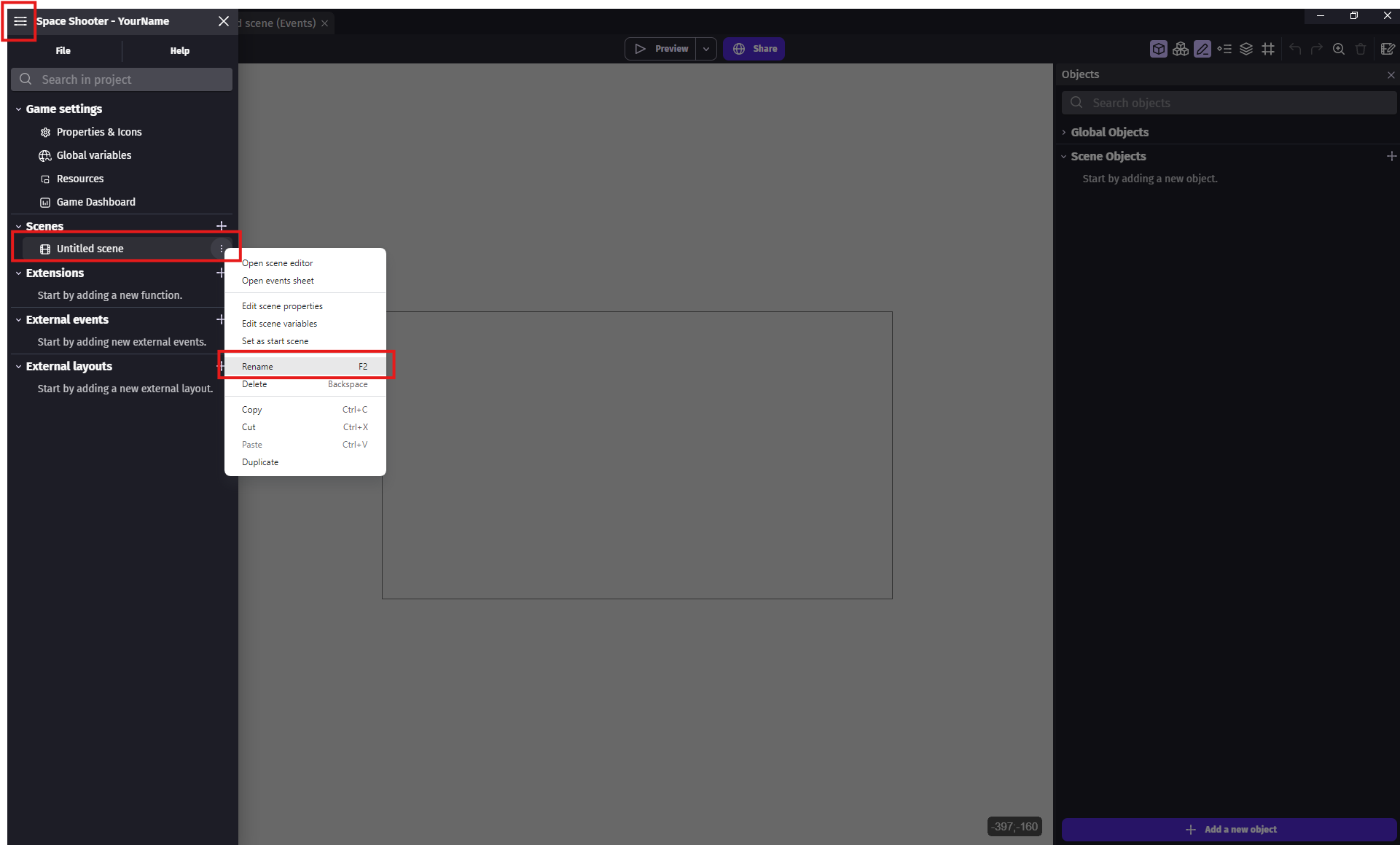
- In the Project Manager, rename the default scene (e.g., UntitledScene) to:
Level_1 - Save the project.

Quick Check — Before You Leave
- You have
H:\3. Game Development. - Inside it:
space_shooter_assetsand your GDevelop project (e.g.,Space Shooter - YourName.json). - Your scene is renamed to
Level_1.
Up Next...
In Lesson 3.1, you’ll add your background and make it look like you're flying through space!