What you'll make
A simple personal webpage with:
- a big heading and a short About Me paragraph
- 2-3 favourite links you actually use
- One image with a short credit
- One "punny" button (change the button text and the message it shows)
- One or two small CSS tweaks (colour/size/spacing)
Files you need
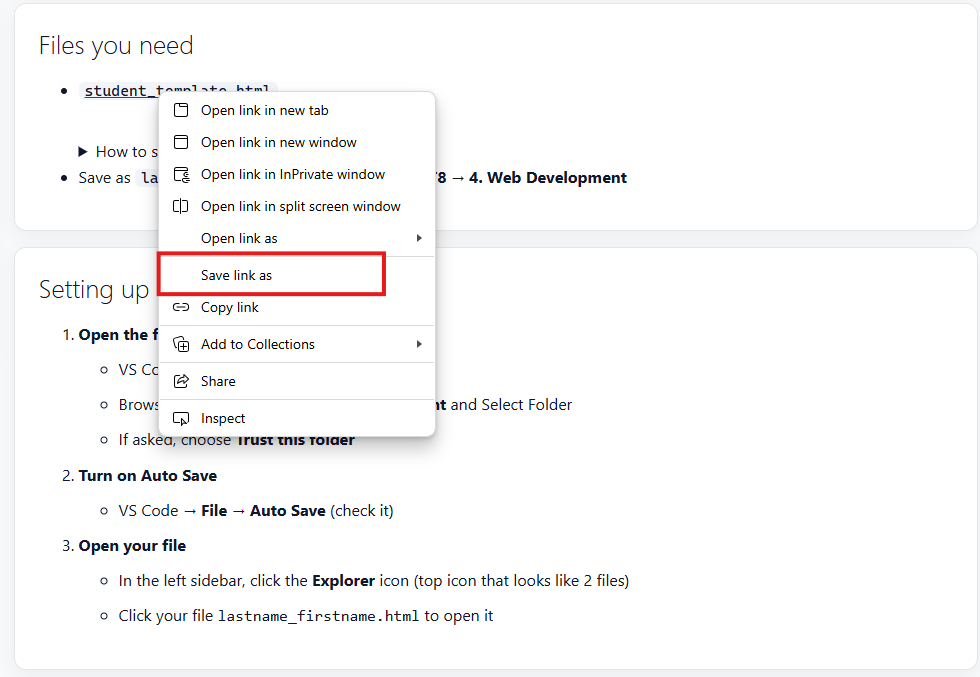
student_template- Right-click on the link
- Select your
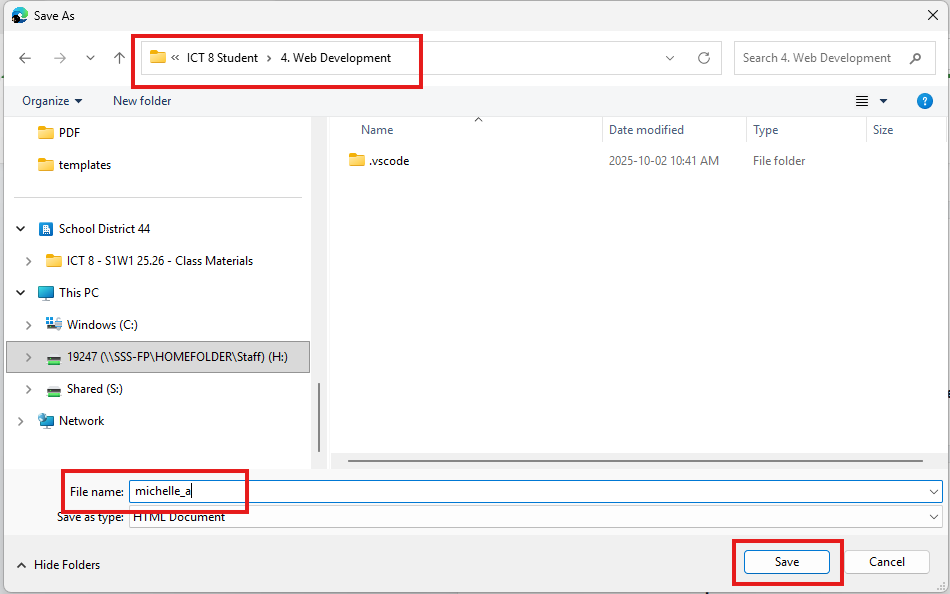
H: → ICT8 → 4. Web Development - Rename the copy to
firstname_lastinitial - Save as
firstname_lastinitialin H: → ICT8 → 4. Web Development
How to save a copy of the template file.
Setting up VS Code (first time only)
- Open VS Code
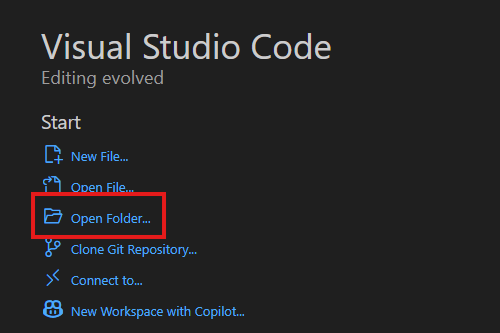
- Open the folder that has your file
- VS Code → File → Open Folder
- Browse to H: → ICT8 → 4. Web Development and Select Folder
- If asked, choose Trust this folder
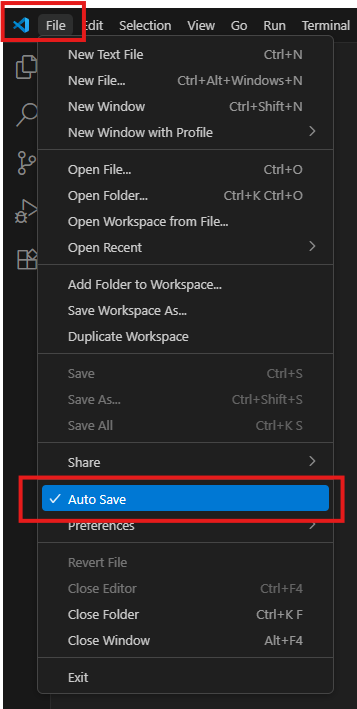
- Turn on Auto Save
- VS Code → File → Auto Save (check it)
- Open your file
- In the left sidebar, click the Explorer icon (top icon that looks like 2 files)
- Click your file
firstname_lastinitial.htmlto open it


Preview your page
- Install the Live Preview extension
- In VS Code, click the Extensions icon in the left sidebar (looks like 4 squares)
- Search for Live Preview
- Click Install
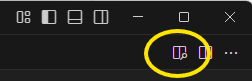
- Start the Live Preview
- Click on the Live Preview button in the top right corner of the window
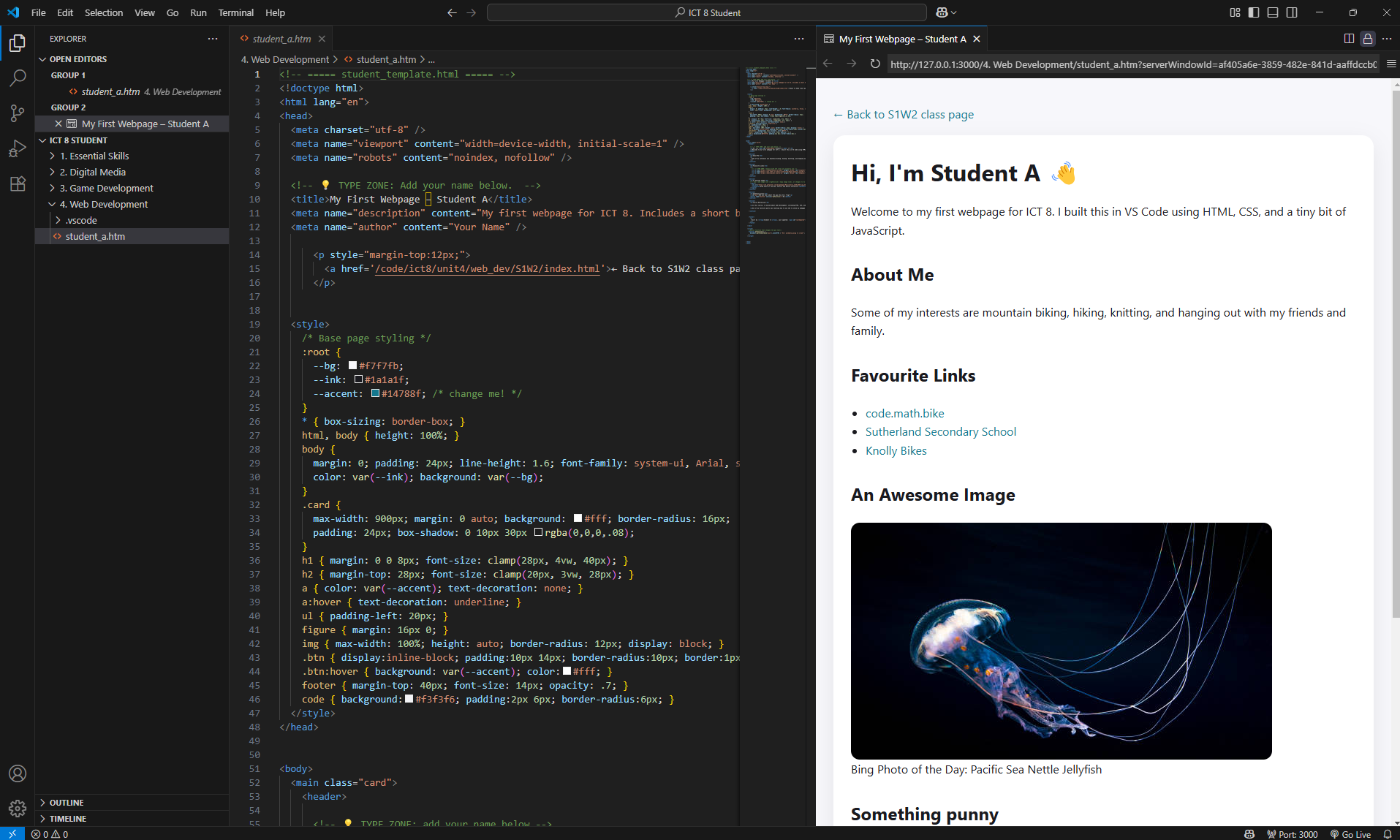
- Your default web browser should open and show your page
- Keep it open while you work
- Whenever you make changes to your code, just save (Ctrl+S) and refresh the browser (F5)
- Press
ALT + Tabto switch between VS Code and your browser

Timeline (3 classes)
Class 1 - Set up + core content
- Download the template and save it as
firstname_lastinitial.htmlin your H: Drive - Open in VS Code. Update the title, heading, About Me (3-4 sentences), and 2-3 links
- Add one image (use a web image URL) + short credit.
- Make the button a pun (change the button text + the message it shows).
- Complete the course reflection (see below)
- Preview in browser using Live Server
Class 2 - Polish + Style
- Change at least one colour and the font type, tweak font size/spacing, and tidy the layout.
- Optional: add another section or a short list
- Change the background colour
Class 3 - Final tidy + and hand-in
- Check spelling, links, image and the pun button
- Hand in (instructions below)
- Your website will be published to your class showcase.
ICT 8 - Final Reflection
Write 6-10 sentences total. For each unit, include:
- What you enjoyed most
- What you found challenging
- What you would like to learn more about
- How you might use what you learned in the future
Units to cover:
- Essential Skills & Digital Literacy
- Digital Media (Word, Excel, Canva)
- Game Development (GDevelop)
- Web Development (VS Code/HTML/CSS/JS)
Sentence starters you can use:
- "In _____, I learned ______ because ______."
- "A challenge in ___ was ___ ; next time I would ___ ."
- "I handled ___ by ____ ."
Success check:
- 6-10 sentences
- Each unit has a learned + challenge statement
- Clear, proofread, school-appropriate
- no personal info (first name + last initial only)