Home Drive vs. OneDrive & Online vs. Desktop Apps
Activity A — Organize in OneDrive
Objective: Create your cloud folders so you can work at school and at home.
- Go to sd44.ca and click on Mail and sign in with your SD44 account.
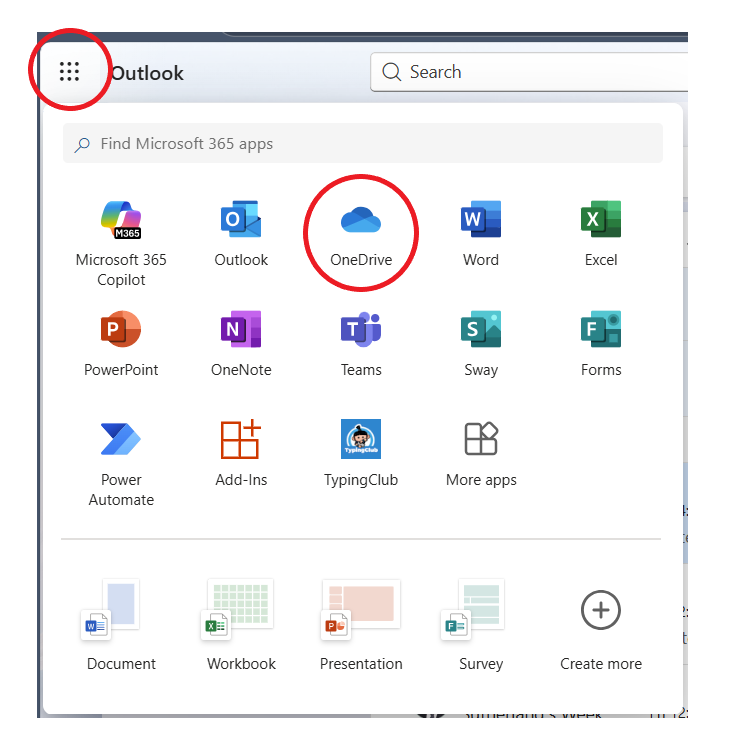
- Click on the "waffle" then open OneDrive.
- Create a new folder named
ICT 8. - Click + New (top left).
- Choose Folder.
- Type
ICT 8→ press Enter.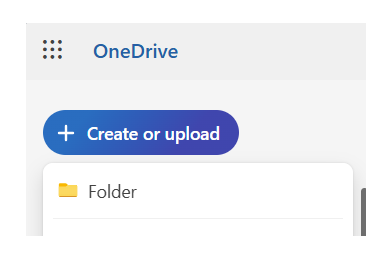
- Inside
ICT 8, create folders for each unit we will do. 1. Essential Skills2. Digital Media3. Game Development4. Web Development- Now organize all the other files in your OneDrive.
- Move any files that you created in Elementary School to a folder called
Elementary School. - Create a
Grade 8folder. - Create subject folders for each subject you are taking this year.
- Move any files you have for this year into the correct subject folder.
- Move your
ICT 8files into yourGrade 8folder.
How to create a folder in OneDrive
All work created in Unit 1 should be saved in your 1. Essential Skills folder.
Activity B - Organize Home Drive
Objective: Create your network folders so you can work at school
- Go to
File Managerand click onThis Computerand double click on yourH:drive. - Create a new folder named
Grade 8. -
Open File Explorer
- Click the yellow folder icon on your taskbar (bottom of the screen),
- or press Windows + E on your keyboard.
-
Go to the Location You Want
- In the left sidebar, click This PC → your H: Drive (student drive),
- then open the folder where you want to create your new folder.
-
Create the Folder
- Option A: Right-click on a blank area → New → Folder
- Option B: Click New (or New Folder) on the top toolbar
- Option C (shortcut): Press Ctrl + Shift + N
-
Name Your Folder
- Type the name (for example:
ICT8_Game_Project) and press Enter.
- Type the name (for example:
-
You're Done! 🎉
- Double-click the new folder to open it.
- Save your files here from now on.
- Inside your
Grade 8, create yourICT 8folder and a folderfor each unit we will do. 1. Essential Skills2. Digital Media3. Game Development4. Web Development- Now organize all the other files in your
H:drive.
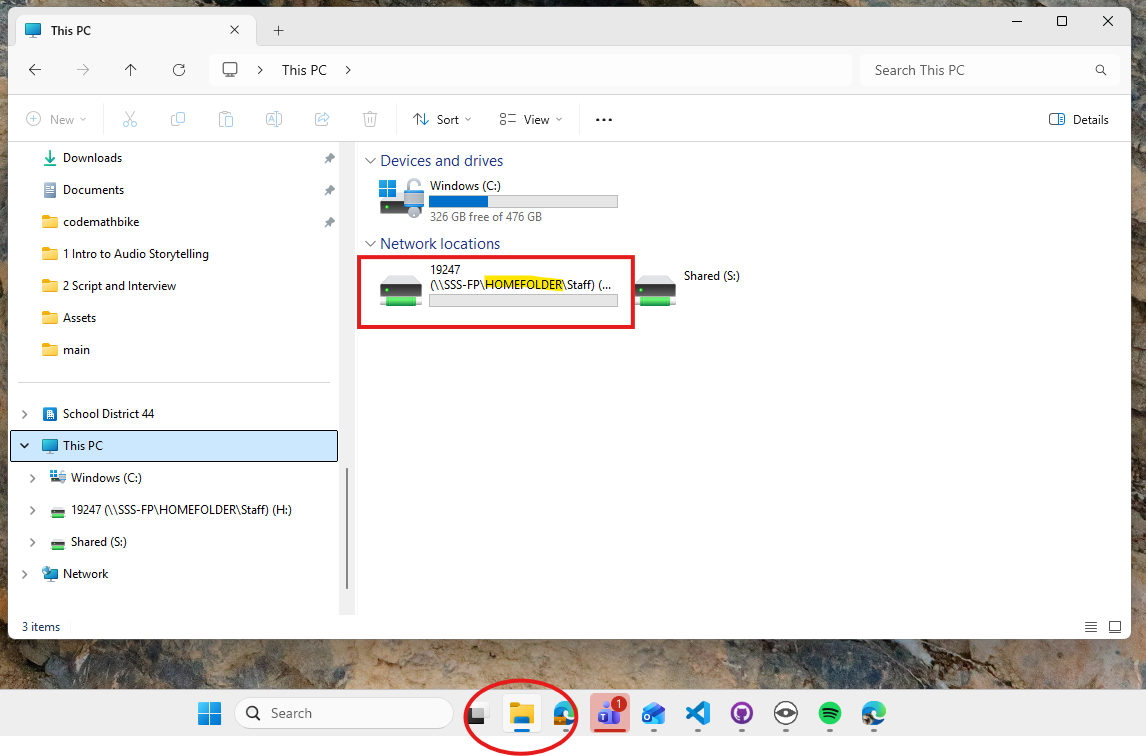
How to Create a New Folder in File Manager
Activity C — Download & Save Files
Objective: Practice moving a file from the website/Teams to your computer, then into OneDrive for editing in Office Online
- Download the 1.2 Essential Skills Web Quest document
- Save this file in your
1. Essential Skillsfolder on your OneDrive. - Complete the tasks in the document. Make sure you do them all!
Activity D — Download & Extract a ZIP Folder (Game Assets)
Objective: Download a ZIP file from a website, extract it, move it to the correct folder, and document the process.
-
Go to the download page
Open Microsoft Edge and go to:
https://kenney.nl/assets/space-shooter-redux -
Download the ZIP file
- Scroll down and click the Download button.
- When Edge asks what to do, click Save.
- The file will download to your Downloads folder.
-
Find the ZIP file
- Open File Explorer.
- Click Downloads on the left.
- Look for
space-shooter-redux.zip.
-
Extract the ZIP file
- Right-click on
space-shooter-redux.zip. - Click Extract All…
- A dialog box will appear asking where to extract the files.
- Do not change anything — just click Extract.
- Right-click on
-
Locate the extracted folder
- A new folder called
space-shooter-reduxwill appear. - This is the folder you will use (not the ZIP file).
- A new folder called
-
Move the folder to your Game Development folder
Move thespace-shooter-reduxfolder into:ICT 8 → Game DevelopmentWays to move the folder
-
Option A: Click & Drag
Click and hold the folder, drag it to yourGame Developmentfolder, then release. -
Option B: Right-click → Cut / Paste
Right-click the folder → Cut
Open yourGame Developmentfolder → right-click → Paste -
Option C: Keyboard shortcuts
Click the folder once → press Ctrl + X
Open yourGame Developmentfolder → press Ctrl + V
-
Option A: Click & Drag
-
Take a screenshot
- Take a screenshot showing the
space-shooter-reduxfolder inside yourGame Developmentfolder. - Add this screenshot to your 1.2 Essential Skills Webquest.
- Take a screenshot showing the
What NOT to do (common mistakes)
- ❌ Do not work directly out of the
.zipfile. - ❌ Do not move the ZIP file instead of the extracted folder.
- ❌ Do not change the extract location unless instructed.
- ❌ Do not delete the folder after extracting it.
Final check: the folder should NOT end in .zip.
Activity E — Handing In Your Work
Objective: Learn how to find your files and attach them to a Teams assignment
- Go to teams and find
1.2 File Management Assignment - Attach the following documents:
1.2 Essential Skills Webquest.docxlocated in your OneDrive1.2 Essential Skills Webquest.pdflocated in your H: Drive- Press the
Hand Inbutton to submit your work.
One is a Word document and the other is a PDF.